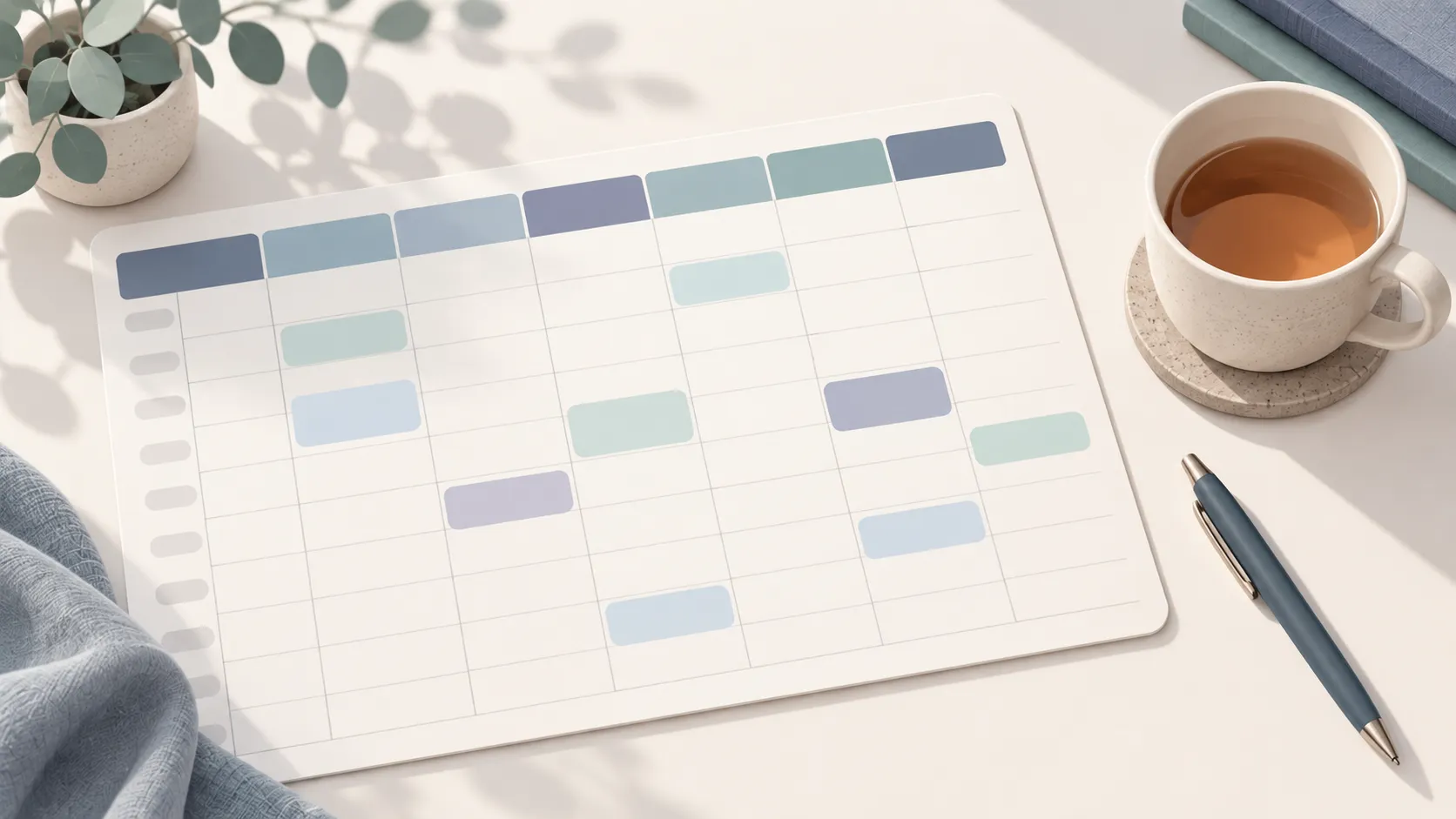
A one-page week at a glance: days across the top, times down the side, and a box for every hour or half hour.
What’s on the Page
A table that fills the page: one column per day you pick, in the order your week starts, and one row per time slot. Day columns are all the same width, and the time column fits its labels. A “Week of” line sits on top, and you can add a Notes row at the bottom.
How to Customize It
- Days shown: any combination, not just weekdays or the full week.
- Week starts on: starts with your own week setting from Settings.
- Start and end hour: the first and last hour on the page (0 to 23).
- Time slots: 1 hour, or 30 minutes for tighter schedules; half-hour rows are lighter so each hour still reads as one block.
- Clock: 12-hour (9:00 AM) or 24-hour (09:00), and the time column alignment.
- “Week of” line and Notes row, plus page setup with landscape.
Printing Tips
- Landscape gives each day a wider column; portrait gives each hour a taller row.
- With 30-minute slots, keep the hour range short (about 12 hours) so the rows stay tall enough to write in.
- The Standard margin gives the table a clean border on any printer.
Ideas for Using It
- Blocking out classes, work shifts and study time for the week.
- Planning exam weeks hour by hour.
- Keeping a shared schedule on the fridge or a dorm door.
- Tracking how you actually spent your time, to plan better next week.
Keep your assignments in one list with Assignment Tracker.